Deploying virtual reality at a business event is not like setting up a gaming rig at home. Consumer VR guides focus on PC specs and cable routing for a single user in a controlled space. But when you bring VR to a trade show floor, hotel ballroom, or corporate training room, you face a completely different set of challenges: shared power circuits, congested Wi-Fi, public-facing failure risk, and the need to run multiple headsets for hours on end.
This guide covers the operational realities of deploying VR for business. It’s a deployment checklist for the marketer, event manager, or training lead who needs to understand what it actually takes to go live with VR and scope a project with confidence.
The Stakes Are Higher at Live Events
A failed VR demo at a trade show booth costs potential leads and damages brand perception. Unlike a personal setup, a business deployment involves anywhere from two to over twenty headsets, a constant rotation of non-expert attendees, and venue staff who are not tech support. The operational risk is significant. While renting VR equipment can shift much of the technical burden to a vendor, the event team must still understand the core requirements to brief the venue, manage the activation, and ensure a smooth experience for attendees.
Standalone vs. Tethered Headsets Change Every Requirement
The first and most critical decision is your choice of hardware, as it dictates all downstream requirements for space, power, network, and staffing.
- Standalone Headsets (e.g., Meta Quest 3, Apple Vision Pro): These all-in-one devices contain their own processors and batteries, making physical setup minimal. However, they demand robust Wi-Fi for streaming or a plan for pre-loading content, along with a meticulous battery management strategy for all-day events.
- PC-Tethered Headsets (e.g., Valve Index, HTC Vive Pro): These connect to a powerful external computer that handles the graphics rendering. This approach delivers the highest visual fidelity, which is ideal for complex product visualizations in engines like Unreal Engine. However, it requires a dedicated gaming PC for each headset, a larger physical footprint, and careful cable management to prevent trip hazards.
Physical Space Requirements
Space is the most frequently underestimated requirement for a VR activation. The necessary floor space is determined by the type of VR experience—seated, standing, or room-scale—and the number of simultaneous users. A miscalculation here can lead to a cramped, unsafe environment or wasted and expensive booth real estate.
Minimum Space Per Headset by Experience Type
- Seated VR (Product demos, 360-degree films): This format has the lowest space demand, requiring just 4–6 square feet per station plus clearance for a chair. It’s suitable for passive experiences where users primarily look around.
- Standing Stationary VR (Product configurators, moderate interaction): Plan for a 6.5-foot by 6.5-foot (approximately 42 sq. ft.) area for each user. This provides a safe buffer for users who may turn, duck, or take a small step. A 3-foot gap between stations is recommended to prevent collisions.
- Room-Scale VR (Walk-around architectural models, safety training): This is the most demanding format, requiring a minimum clear area of 10×10 feet per user. Some commercial free-roam titles are built around a 20×20 foot minimum. This format needs clearly defined “guardian” boundaries and constant attendant supervision.
- Multi-Station Activations: To calculate the total footprint, multiply the space per station by the number of stations and add a 20% buffer for attendant movement, queuing, and equipment storage.
Venue Flooring, Ceiling Height, and Obstacle Considerations
Always request a detailed venue floor plan in advance. The environment itself can directly impact performance.
- Flooring: Carpeting is preferable for managing the cables of tethered headsets and reducing tripping risks. Hard, reflective floors can sometimes interfere with tracking systems.
- Ceiling Height: A minimum ceiling height of 8 feet (2.5 meters) is recommended. While not always a dealbreaker, very low ceilings or reflective surfaces can sometimes interfere with the inside-out tracking cameras found on standalone headsets.
- Obstacles: Booth walls, structural columns, and even neighboring exhibitors’ large metal displays can create dead zones for tracking systems. Map these potential interference zones before finalizing your layout.
Power and Network Infrastructure Requirements
Power and Wi-Fi are the two most common points of failure for event-based VR deployments. A convention center is a hostile environment for technology; you must plan accordingly.
Power Infrastructure Requirements
A VR setup draws significantly more power than a few laptops. A shared circuit with a neighboring booth can cause voltage drops that crash a high-end PC mid-demo.
Power Draw by Hardware Type:
- Standalone Headsets (Meta Quest 3): These charge via USB-C. A multi-port USB charging hub can service up to 10 headsets from a single outlet, making power management simpler. The key is not the power draw, but the battery rotation plan.
- Apple Vision Pro: The external battery provides about 2-2.5 hours of use and is charged via USB-C. For all-day events, a plan for continuous power or battery swaps is essential.
- PC-Tethered VR Rig: A gaming PC built for VR can consume between 400–700 watts under load. For a six-station setup, this means you need to budget for approximately 3,600–4,200W.
How to Brief Your Venue:
- Be Specific: Submit a power order form that specifies your total required wattage. Do not simply ask for “power for computers.”
- Request Dedicated Circuits: Always request one or more dedicated 20-amp circuits for your activation. This ensures your power is not shared with other exhibitors, preventing fluctuations.
- Use an Uninterruptible Power Supply (UPS): For every PC-tethered station, a UPS is a mandatory buffer against brief power drops or sags, which are common at large venues.
Network and Wi-Fi Requirements
Convention center Wi-Fi is notoriously unreliable—it’s shared, congested, and should never be trusted for a mission-critical activation.
When You Need Wi-Fi (and When You Don’t):
- No Wi-Fi Needed (Most Reliable): The safest approach for trade shows is to pre-load all content onto the headsets before the event. This is known as “sideloading.” PC-tethered experiences that run locally also do not require an internet connection.
- Wi-Fi Required: An internet connection is only necessary for live multiplayer experiences, cloud-streamed content, or real-time analytics dashboards.
If You Must Use Wi-Fi:
- Order a Dedicated Line: Never use the free public Wi-Fi. Order a dedicated, hardwired internet drop from the venue’s official provider. This typically costs between $200 and $600 but is the only way to guarantee bandwidth.
- Bring Your Own Router: Connect your own high-quality Wi-Fi 6 router to the hardwired drop. Broadcast on the 5GHz band only and disable the 2.4GHz band to minimize interference.
- Isolate Your Network: Lock the network with a password and connect only the VR devices to it. Do not allow staff or attendees to connect their personal phones or laptops.
Hardware and Content Configuration: The Pre-Event Checklist
Hardware that arrives at a venue unconfigured is a recipe for disaster. Whether you are managing your own fleet or using a rental service, every device must be fully prepared and tested before it gets to the show floor.
Pre-Event Headset Configuration Checklist
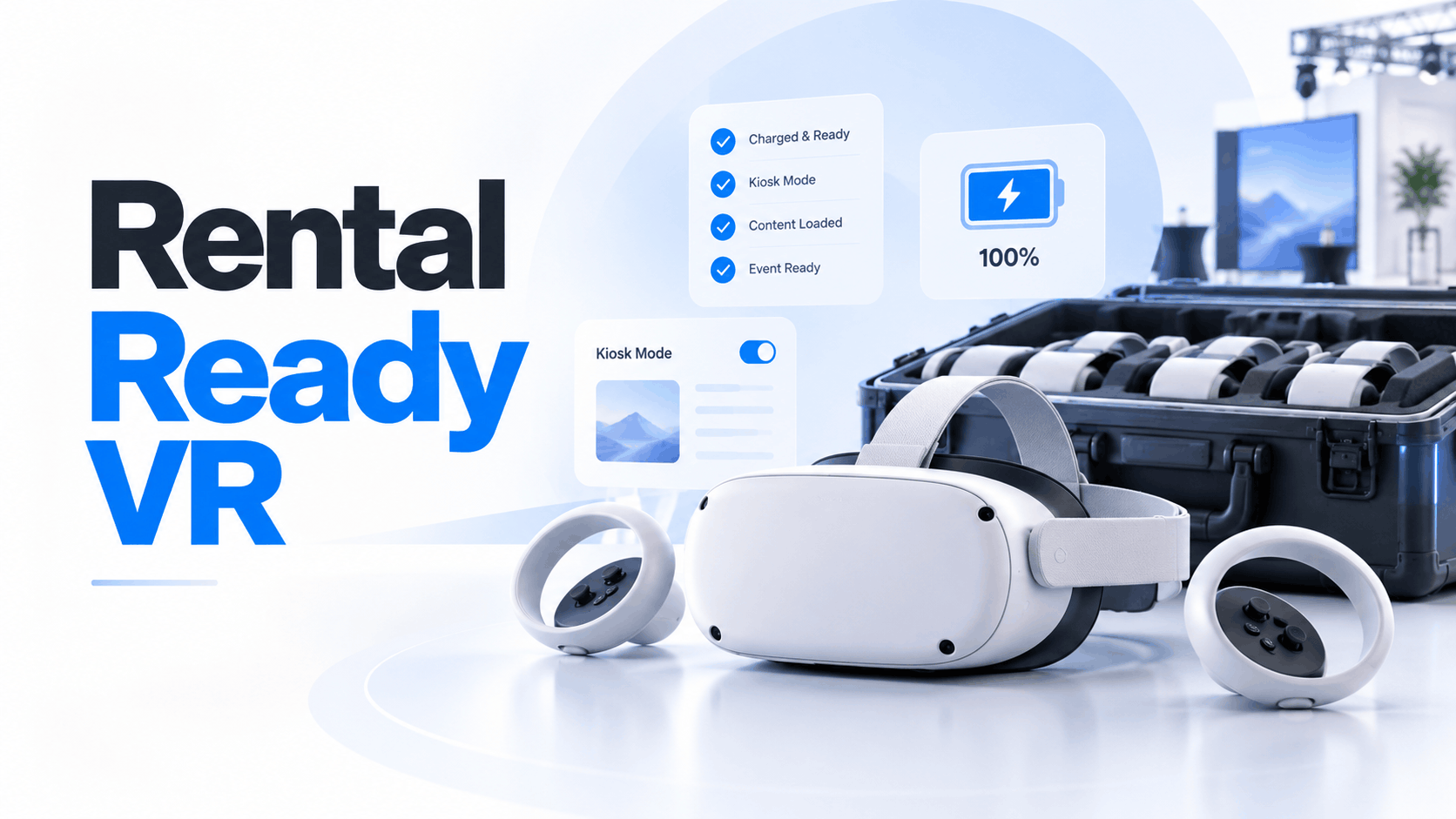
- Use a Kiosk Mode Account: Never use a personal or developer account. Set up a dedicated account for the event and lock the headsets into “kiosk mode” so they only run your specific application.
- Load and Test Content Offline: Install all VR applications and media, then test that they launch and run perfectly without an internet connection.
- Pre-Set Guardian Boundaries: Configure the safe play area boundaries in the headset settings to match the physical layout you’ve designed for the booth.
- Disable Interruptions: Turn off all system notifications, update prompts, and app store pop-ups that could interrupt a user’s demo.
- Label Everything: Assign a number to each headset, its controllers, and its charging cable. Create a log to track battery rotation and any technical issues.
- PC-Tethered Prep: For PC-based setups, verify all GPU drivers are updated, the correct version of SteamVR or your game engine is installed, and all cables are tested and working before packing.
Content Requirements
- 360-Degree Video: For standalone headsets like the Meta Quest 3, encode videos at a minimum of 4K resolution. For higher-fidelity tethered headsets, aim for 5.7K or 8K to avoid pixelation.
- 3D Models & CAD Files: These must be heavily optimized for real-time rendering. Unoptimized, high-polygon models will cause low frame rates, which is a primary cause of motion sickness.
- Unreal/Unity Experiences: Package the application as a standalone executable file and test it on the exact PC hardware (GPU, CPU, RAM) that will be used at the event.
- Test on Final Hardware: All content must be tested on the exact model of headset being deployed. Performance can vary significantly even between similar models.
Staffing Requirements for VR Activations
Staffing is a critical setup requirement, not an afterthought. Your attendants are the bridge between the technology and the attendee. They ensure safety, manage throughput, and shape the guest’s experience. Understaffing a VR booth is a common and avoidable mistake.
Attendant-to-Headset Ratios
- Seated or Simple Standing VR: One trained attendant can typically manage up to three headsets. Their role is to help users with fitting, launch the experience, and monitor them.
- Room-Scale or High-Throughput VR: Assign at least one attendant for every two headsets. For a busy trade show with five or more stations, add a dedicated queue manager whose only job is to manage the line and engage waiting attendees.
- PC-Tethered Setups: Add one dedicated technical operator who is not customer-facing. Their sole responsibility is to monitor the PC stations and troubleshoot any crashes.
What Attendants Must Be Trained On
- Headset Fit and Hygiene: How to properly fit a headset for different head sizes and for guests who wear glasses. A poor fit can cause blurriness and motion sickness. They must also follow a strict hygiene protocol, cleaning the headset between each use.
- Experience Operation: How to launch, restart, and reset the VR experience quickly without needing to call for technical support.
- Safety and Monitoring: How to recognize the early signs of motion sickness and how to verbally guide users who are approaching the edge of the safe play area.
- Battery Management: For standalone headsets, attendants must know the battery rotation schedule to ensure no headset goes down during peak hours.
Contingency and Failure Prevention
At a live event, something will eventually go wrong. A headset will fail, content will crash, or the venue will have a momentary power dip. Smooth activations are not the result of good luck; they are the result of good planning.
Minimum Redundancy Standards
- Spare Hardware: Bring at least one spare headset for every four you plan to deploy. A six-headset activation should have seven or eight units on-site.
- PC-Tethered Spares: For PC-VR setups, have a spare GPU and a fully imaged backup laptop or PC ready to be swapped in at a moment’s notice.
- Network Backup: Even if you order a dedicated internet line, bring a 4G/5G mobile hotspot as a backup.
- Power Backup: Keep fully charged USB-C power banks for each standalone headset as a final line of defense against charging station failure.
On-Site Troubleshooting Protocol
- Laminated Restart Guide: Create a simple, 3-step restart procedure for the experience and laminate a copy at each station. Attendants should be able to solve common crashes themselves.
- Designated Tech Lead: Assign one person as the single point of contact for technical escalations. This person should not be managing attendees.
- Know Your Venue Contacts: Before the event opens, know the name and number of the venue’s AV support lead and where the electrical panels for your booth are located.
- Have a Plan B: If a station goes down and cannot be fixed quickly, have a fallback. Convert the station to a 2D screen demo of the content rather than leaving a dark, empty space in your booth.
Rental vs. Self-Managed Setup: What Changes
The choice to rent a pre-configured VR package or to buy and manage your own hardware fleet fundamentally changes where the responsibility for these requirements lies.
What a Managed Rental Vendor Handles
- Hardware & Configuration: The vendor sources, configures, tests, and loads content onto the hardware. You receive a “show-ready” kit.
- Redundancy: Spare headsets and components are typically included in the rental package.
- On-Site Support: Many full-service rentals include on-site technical staff who handle setup, troubleshooting, and sometimes even attendee management.
What Your Team Still Owns
- Content Delivery: You are responsible for providing the final, tested VR application or video files to the vendor on their specified timeline (often 5-10 business days before the event).
- Venue Coordination: Ordering power, submitting floor plans, and securing a dedicated internet drop remain your responsibility.
- Experience Briefing: You must clearly define the desired user flow, session length, and brand messaging for the vendor’s on-site staff.
- Data & Analytics: If you require lead capture or user analytics, this must be specified as a requirement from the outset. It cannot be added on the day of the show.
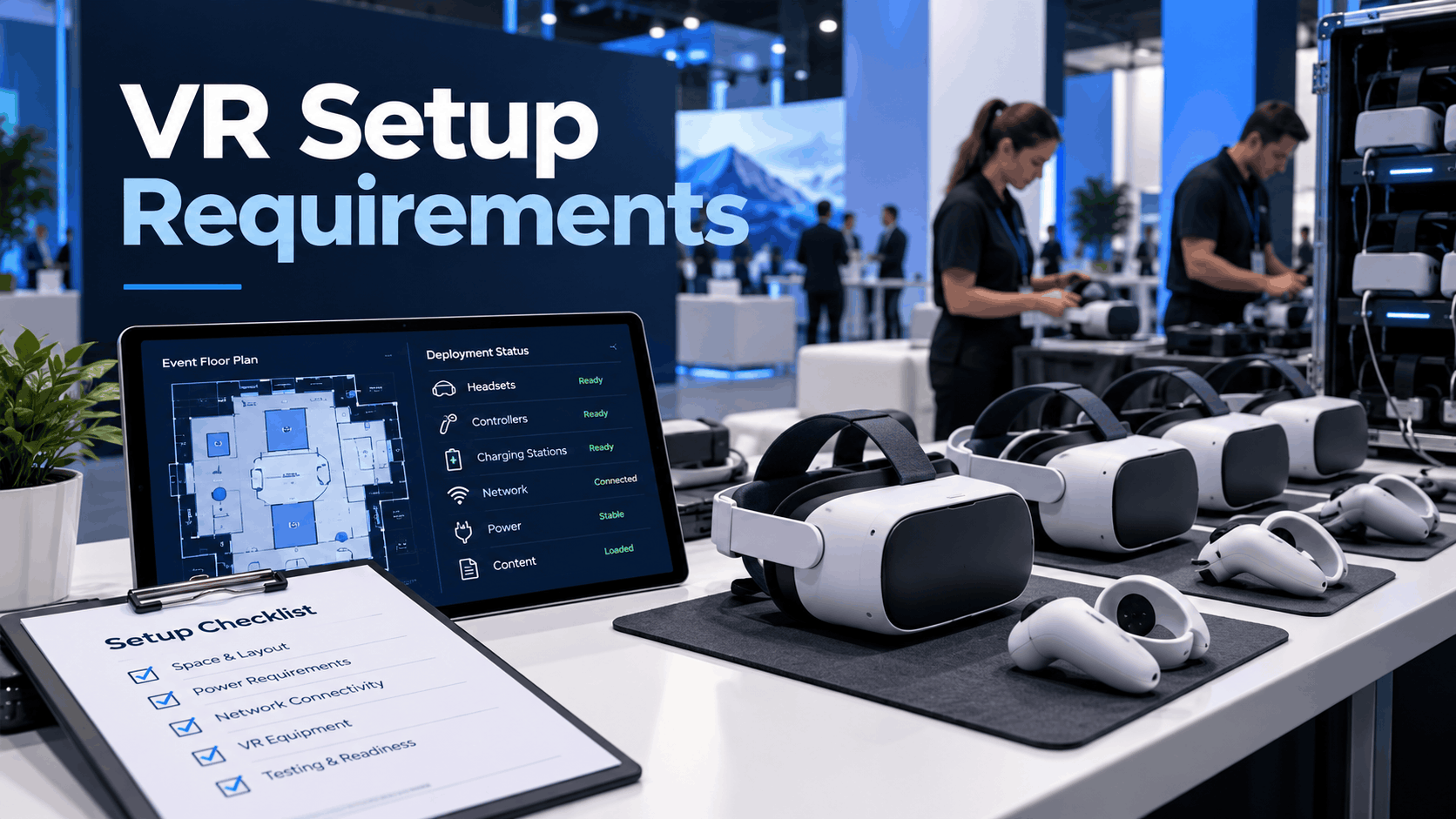
Printable Deployment Checklist Summary
Space:
- Calculate space per station: Seated (6 sq. ft.), Standing (40 sq. ft.), Room-Scale (100 sq. ft.).
- Add 20% buffer for staff and queues.
- Obtain venue floor plan and map obstacles.
Power:
- Calculate total wattage (PC rigs ≈ 500-700W each).
- Order dedicated 20-amp circuit(s) from the venue.
- Procure one UPS per PC station.
- Plan charging station and battery rotation for standalone headsets.
Network:
- Default to pre-loading all content offline.
- If Wi-Fi is mandatory, order a dedicated hardwired internet drop.
- Bring your own Wi-Fi 6 router; use 5GHz band only.
- Secure the network and use it only for VR devices.
Hardware & Content (Pre-Event):
- Create a dedicated event/kiosk account.
- Install and test all content for offline functionality.
- Disable all system notifications and pop-ups.
- Label all hardware (headsets, controllers, cables).
- Verify content is optimized and tested on the final hardware.
Staffing:
- Plan for 1 attendant per 2-3 headsets.
- Add a dedicated queue manager for high-traffic booths.
- Add a dedicated tech operator for PC-VR setups.
- Train all staff on headset fitting, hygiene, experience restart, and safety.
Contingency:
- Pack 1 spare headset for every 4 deployed.
- Pack a network backup (5G hotspot).
- Document and laminate a 3-step restart guide for attendants.
- Identify the venue’s AV and electrical contacts before showtime.
Frequently Asked Questions (FAQ)
What is the minimum space required for a VR setup at a trade show?
For a simple seated or standing experience with one headset, a clear 6.5 x 6.5-foot area is a good starting point, plus space for a staff member and a monitor. However, even a compact 4m² (about 43 sq. ft.) can be sufficient for some seated demos.
Do VR headsets need Wi-Fi to work at an event?
No, and it’s more reliable if they don’t. The most robust setup involves pre-loading all applications and videos onto the headsets before the event, which eliminates any reliance on unstable venue Wi-Fi.
How much power does a VR setup require at a convention center?
A single PC-tethered VR station can draw 400-700 watts. A multi-station booth can easily require a dedicated 20-amp circuit. Standalone headsets have much lower power needs, manageable with a standard power strip for charging hubs.
How many staff do I need to run a VR activation at a trade show?
A good rule of thumb is one attendant for every two to three headsets. If you expect high traffic, add a dedicated person to manage the queue. For complex PC-VR setups, a separate technical operator is also recommended.
What is the difference between standalone and tethered VR setup requirements?
Standalone headsets (like Meta Quest 3) are self-contained and require minimal physical setup but need a strong battery management plan. PC-tethered headsets connect to a powerful computer, offering higher visual quality but requiring more space, power, and cable management per station.
How far in advance do I need to configure VR headsets before an event?
All configuration—content loading, disabling notifications, setting up kiosk mode—should be completed and tested at least 5-10 business days before the event. This is especially critical if you are shipping hardware or handing it off to a rental vendor.
What happens if a VR headset fails during a live event?
A professional setup plans for failure. Best practice is to have at least one spare headset for every four deployed. If a station goes down, the spare is swapped in. If no spare is available, the station should be converted to a 2D screen demo to avoid having a “dead” zone in your booth.
Can I use venue Wi-Fi for my VR activation?
It is strongly discouraged. Venue Wi-Fi is shared, congested, and unreliable. If you absolutely need internet, order a dedicated hardwired drop from the venue’s provider and use your own private router.
What content format do I need for VR at a corporate event?
This depends on the hardware and experience. For 360-degree video, use high-resolution (4K minimum) MP4 files. For interactive experiences, you’ll need an application built in a game engine like Unity or Unreal, packaged as an executable file for PC-VR or an APK for standalone headsets.
Is it better to rent pre-configured VR hardware or buy and configure my own for events?
For companies running VR at one to four events per year, renting is almost always the better option. Rental vendors handle the procurement, configuration, maintenance, and logistics, which removes a significant technical burden from your team and ensures you have access to modern, well-maintained equipment.